
Spaces:
Running
on
Zero
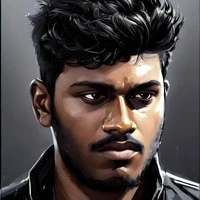
How to Use Qwen-Image-Edit (2509-LoRAs-Fast)
How to Use Qwen-Image-Edit (2509-LoRAs-Fast)
Qwen-Image-Edit (2509-LoRAs-Fast) – a unified Hugging Face Space designed for experimenting with specialized Qwen Image Editing Adapters for diverse visual transformations, including Photo-to-Anime, Light Restoration, Relighting, and Multi-Angle Edits — all executed with fast inference and optimized adapter loading.
(1) Photo-to-Anime
Transforms real-life photos into stylized anime visuals while maintaining composition and key image details.
Standard Edit Prompt:
[photo content] + transform into anime style, keeping the composition and key features consistent while applying detailed anime-like shading and color tones.
Example:
- Image:
examples/1.jpg - Edit Prompt:
Transform into anime.
(2) Light-Restoration
Removes shadows and relights the image using natural, soft, and diffused lighting to enhance visibility and realism.
Standard Edit Prompt:
[photo content] + remove shadows and relight the image using soft, natural, diffused lighting for a balanced and realistic appearance.
Example:
- Image:
examples/5.jpg - Edit Prompt:
Remove shadows and relight the image using soft lighting.
(3) Relight
Applies lighting transformations such as golden-hour effects or gentle light diffusion to create cinematic or natural tones.
Standard Edit Prompt:
[photo content] + apply a golden-hour lighting effect with soft diffusion, enhancing highlights and warmth while preserving natural shadows.
Example:
- Image:
examples/4.jpg - Edit Prompt:
Use a subtle golden-hour filter with smooth light diffusion.
(4) Multiple-Angle-Edits
Generates perspective or camera-angle variations such as rotations, top-down, wide-angle, or bottom-up views, preserving object proportions and spatial depth.
Standard Edit Prompt:
[photo content] + adjust the camera angle or perspective as specified, maintaining proportion, lighting, and depth for a realistic new view.
Examples:
- Image:
examples/2.jpeg–Rotate the camera 45 degrees to the left. - Image:
examples/4.jpg–Rotate the camera 45 degrees to the right. - Image:
examples/2.jpeg–Switch the camera to a top-down right corner view. - Image:
examples/4.jpg–Switch the camera to a top-down view. - Image:
examples/6.jpg–Switch the camera to a bottom-up view. - Image:
examples/6.jpg–Rotate the camera 180 degrees upside down. - Image:
examples/4.jpg–Switch the camera to a wide-angle lens.
 |
 |
|---|---|
 |
 |